Overview
There’s a program called AllData. If’s for fixing cars, estimating prices, printing invoices, etc. Shops use it. It’s an online tool that you pay lots of money for.
But it didn’t used to be this way. in 2014 and earlier, they used to distribute this software on discs. Many, many, discs. Approximately 50x DVDs at 4.7GB each. If one knows where to look, one could find these discs and make use of them.
If your car is newer than 2014, you’re SOL, “So Out of Luck”…
This post is for entertainment and cyber security training purposes only. Installing programs of unknown origin on your computer is dangerous. It could result in your banking passwords being stolen, entire disk being encrypted and held ransom, or even your untimely (or timely, I have no idea what’s going on in your life) death. Do not follow these instructions. They are here only for demonstrating how dangerous strangers on the internet can be.
Install
First, go get some files. Ask your friends if you’re having trouble figuring out where to look.
Now that you have files, you should have one in particular called AFW_10530813.iso.
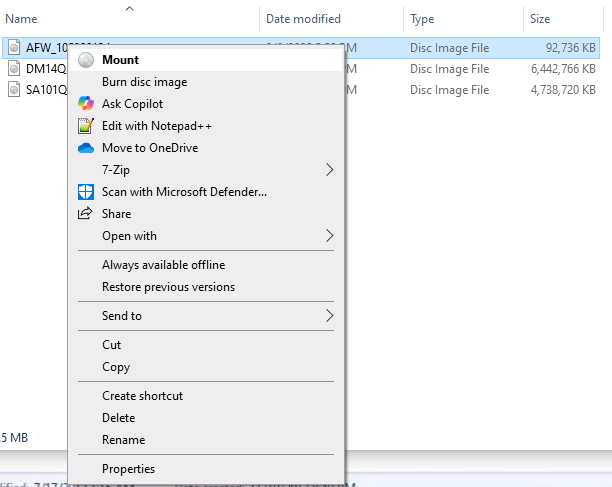
Right click on this file, and mount it. Windows will mount the file as if it were an optical drive that you can open. Mine showed up as a D:\ drive. Yours may be something different.
Make sure that you aren’t connected to the internet. You can go into network settings and disable your adapter. Or unplug your ethernet cable. Or unplug a wifi USB adapter. Etc. You should see a networking icon in your system tray with a red X through it. This ensures that the program isn’t able to phone home and tell the parent company your secrets. We don’t want them getting your banking information. So to be safe, we’re going to do this disconnected to the internet.
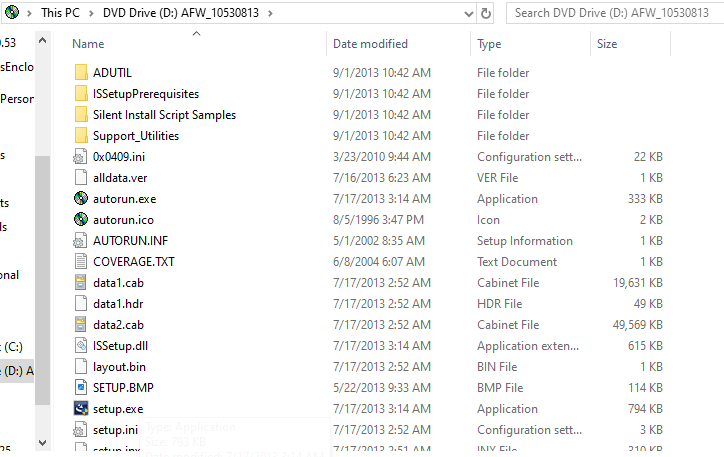
Open that drive, and run setup.exe.
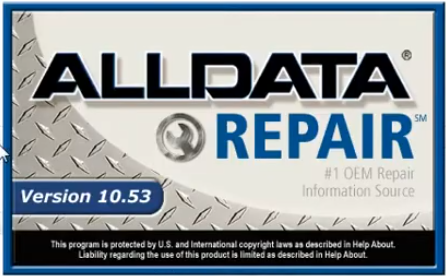
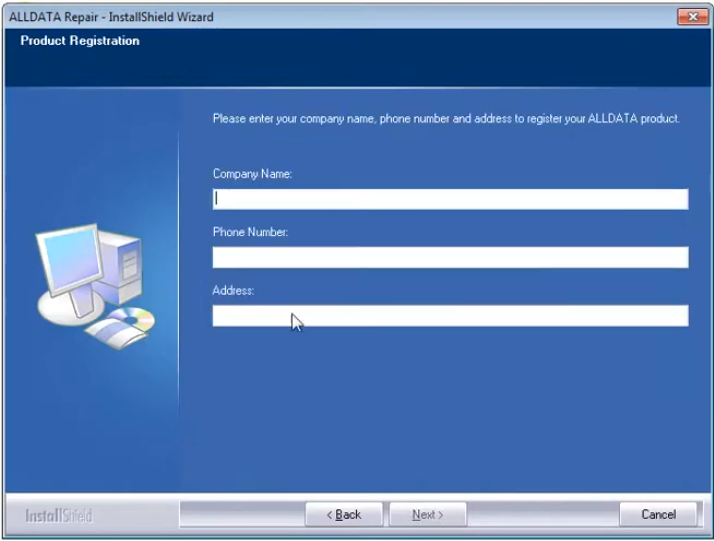
Continue through the prompts, accepting the terms. Eventually you’ll be asked for your name, company name, and phone number. I value my privacy, so I just entered “1” into each field. If they want to get a hold of me, they’ll know how.
Continue through more prompts until you can choose your install location. If you have room on your C:\ drive, accept the default. Or choose your own location. E.g. you have an additional HDD on your computer you’d rather fill with these files. They can be quite large depending on how many vehicles you want in your library.
Let the installer complete its business. Click ok at the end. You should now have an AllData icon on your desktop.
We can now unmount the .iso file that we had open. On the left side of a Windows explorer window, you can find the fake disc drive, right-click, and select ‘Eject’. We can also delete the first .iso file to free up ~900 MB of space on our hard drive if needed.
Crack
We don’t like the original program. It’s not very conscious of cyber security best practices in the year of our lord, 2026. So we have a replacement executable we’ll use instead.
Go to your installed folder. If you don’t remember where that is, you can right-click on the desktop icon, and select ‘properties’. Then ‘Open File Location’ will open a file explorer window at the correct path.
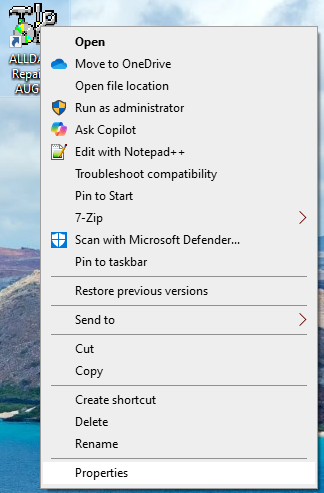
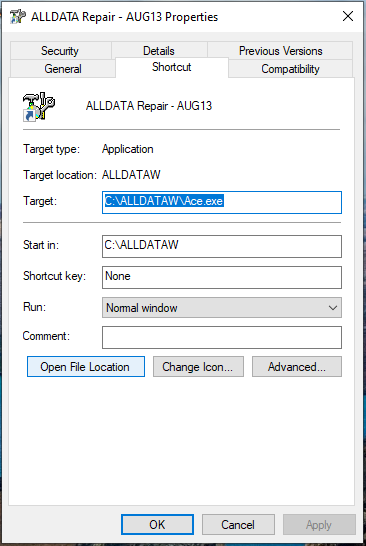
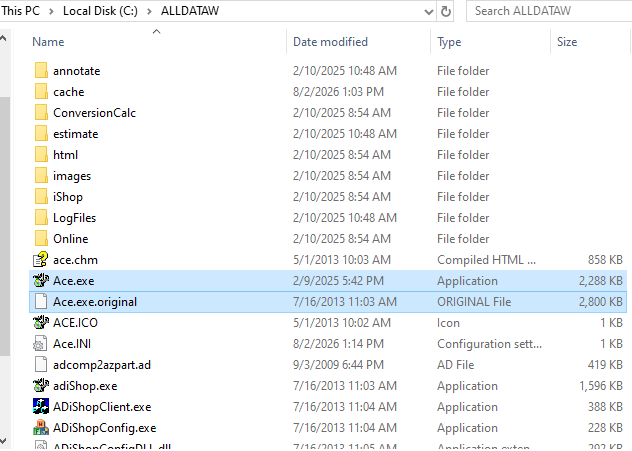
Save the original program in case we want to re-use it later for some reason. Find ‘Ace.exe’, select the file, and hit ‘F2’. Or right-click on the file and ‘Rename’.
Rename the file ‘Ace.exe.original’ or something that will make sense to you in the future.
Now take the ‘Ace.exe’ file that you got from a different source, and copy-paste it into this directory. it will take the place of the old file. The desktop shortcut will run this file instead. We can now close this window, since we’re done mucking about with this folder.
DNS
Next, we’ll make sure that certain domains and IP addresses aren’t reachable, because they can’t be trusted. So we’ll go into our hosts file and redirect them to our own computer (12.0.0.1). When programs try to connect to these domains or IPs, they’ll instead be redirected back here, and be screaming into the void. Because our computer doesn’t have any services running that know what to do with this traffic.
Go to your hosts file. In Windows 1, it’s located at ‘C:\Windows\System32\drivers\etc\hosts’. There’s no file extension, but it’s just a text file. So right-click on the ‘hosts’ file, and open with your favorite text editor. ‘Edit with Notepad++’, if you have Notepad++ installed. Or ‘Open with another program’, then go find notepad in the list.
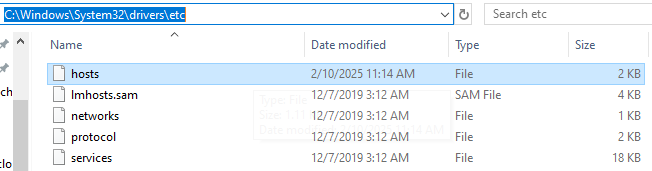
Paste in the items from your provided text file ‘hosts_additions.txt’ at the bottom. Don’t overwrite any existing entries, they could be useful.
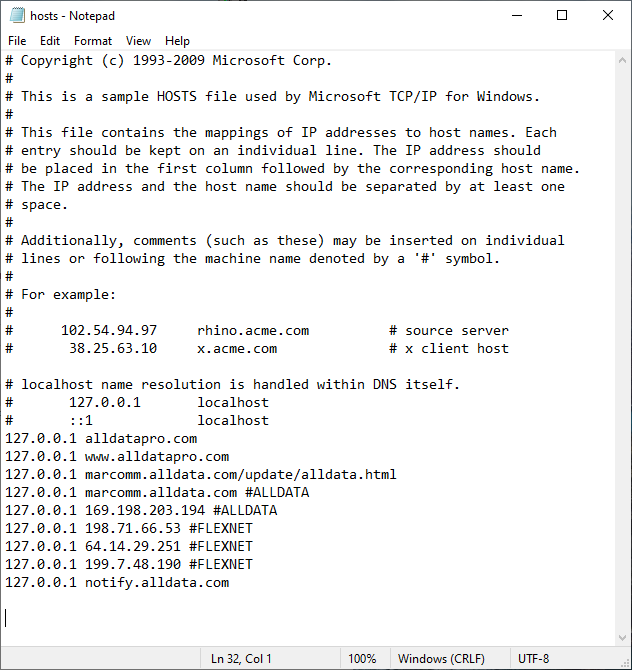
Get your vehicle databases installed
Now we need to get the files from a disc(s) put onto your computer somewhere accessible.
If you have a text file listing the effectivity of each disc, you can go there and choose a vehicle. I’m going to start with domestic vehicles disc #14. Which is called ‘DM14Q313.iso’. Right-click and mount this .iso file just like we did before.
First, I’m going to go create a folder somewhere that I’ll remember. I have an old 500GB hard drive for just this purpose, mounted as disc drive ‘E:'. So I’ll make a folder ‘E:\alldata\dm14’.
Get the empty folder you created open in one window. Get the mounted .iso (showing up as a fake optical drive) open in another window. Select all of the files from the mounted .iso, and paste them into your empty directory. Let this finish, it may take a while.
We can now unmount the .iso, and delete if if wanted. It will free up 4.7GB of space.
I’ll do this again with the domestics disc #16. It has some mid-2000’s Pontiac vehicles, and I’ve always liked Pontiacs. So I’ll do the exact same process for this. Creating a folder called ‘E:\alldata\dm16’, placing the files there from ‘DM16Q313.iso’, then deleting the .iso file once complete.
Get the files loaded in AllData
Finally, we just need to get AllData to recognize where these folders are in our filesystem, so that it can access them.
So we’ll open up AllData from the desktop shortcut. Or by running ‘Ace.exe’ in the install directory (the new one, not the original one).
Once open, we’re going to the menu bar, ‘Data » Devices’.
Then we’re clicking on ‘Connect’, which opens up a dialog for getting the file path created.
This is a little clunky. My files are in ‘E:\alldata\dm14’ and ‘E:\alldata\dm16’. So I have to click on my E:\ drive once to select it. Then in ‘Data Path’ I’ll manually type in the last portion of the path name, which for me is ‘alldata\dm14’. Then I’m clicking the ‘Enable Data Caching’ checkbox. Followed by ‘OK’.
This has imported one disc worth of files. I’ll have to do this process over for every single disc worth of files that I want.
Conclusion
Now in AllData, we should be able to click on the ‘New Car’ icon, search for our vehicle, and open it. If we don’t have the correct disc loaded into a folder, the program will yell at us, and tell us exactly which disc we need to go find.
E.g. I want to look at the service data for a 2012 Freightliner truck. Once I try and open diagrams, it tells me “The ALLDATA content you have selected for this vehicle is not found on the disc. Please insert the following disc:”.
‘Import 70’ or ‘Service Advisor 3’. So then I know that I can follow the same process for ‘IMP70Q313.iso’, or ‘SA3Q313.iso’ if I want to continue.
I didn’t pay for those discs, so I’m not going to continue. You should only use the files that you’ve paid for.